
Recording matches manually works fine when it's just a few friends. But once your community hits 20, 30, 50+ active players, the bottleneck isn't the rating system. It's getting games started. Someone pings @everyone, four people respond, two drop out, and by the time teams are sorted it's been 20 minutes.
Matchmaking queues fix that. Players press a button to join, the bot forms balanced teams when enough people are in, and the match starts. No coordination needed.
This guide walks through setting up a Valorant 5v5 ranked queue as a concrete example, but the same steps work for any game: CS2, League of Legends, Overwatch, whatever you're running. If you haven't added the bot yet, start with the leaderboard setup guide first.
Create the Queue
One command sets up a fully automated 5v5 queue:
/queue_versus headless queue_name:val-ranked title:Valorant Ranked 5v5 description:Balanced 5v5 customs — queue up and get matched team_size:5 match_start_channel:#match-results match_end_channel:#match-history team_formation:balanced_teams leaderboard:Valorant
Here's what each option does:
- queue_name — internal name, used in other commands (max 32 characters)
- title — what players see at the top of the queue message
- description — short description shown below the title
- team_size — players per team (5 for a 5v5, 2 for a 2v2, 1 for a 1v1)
- match_start_channel — where the bot posts active matches
- match_end_channel — where finished matches get logged
- team_formation — how teams are split (more on this below)
- leaderboard — which leaderboard's ratings to use
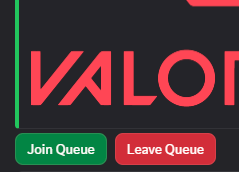
The bot posts a message with a Join button. That's your queue.
How It Works
Players click Join to enter the queue. When 10 players are in (5 per team), the bot locks the queue, balances two teams by Elo, creates the match, and posts it in your match channel.
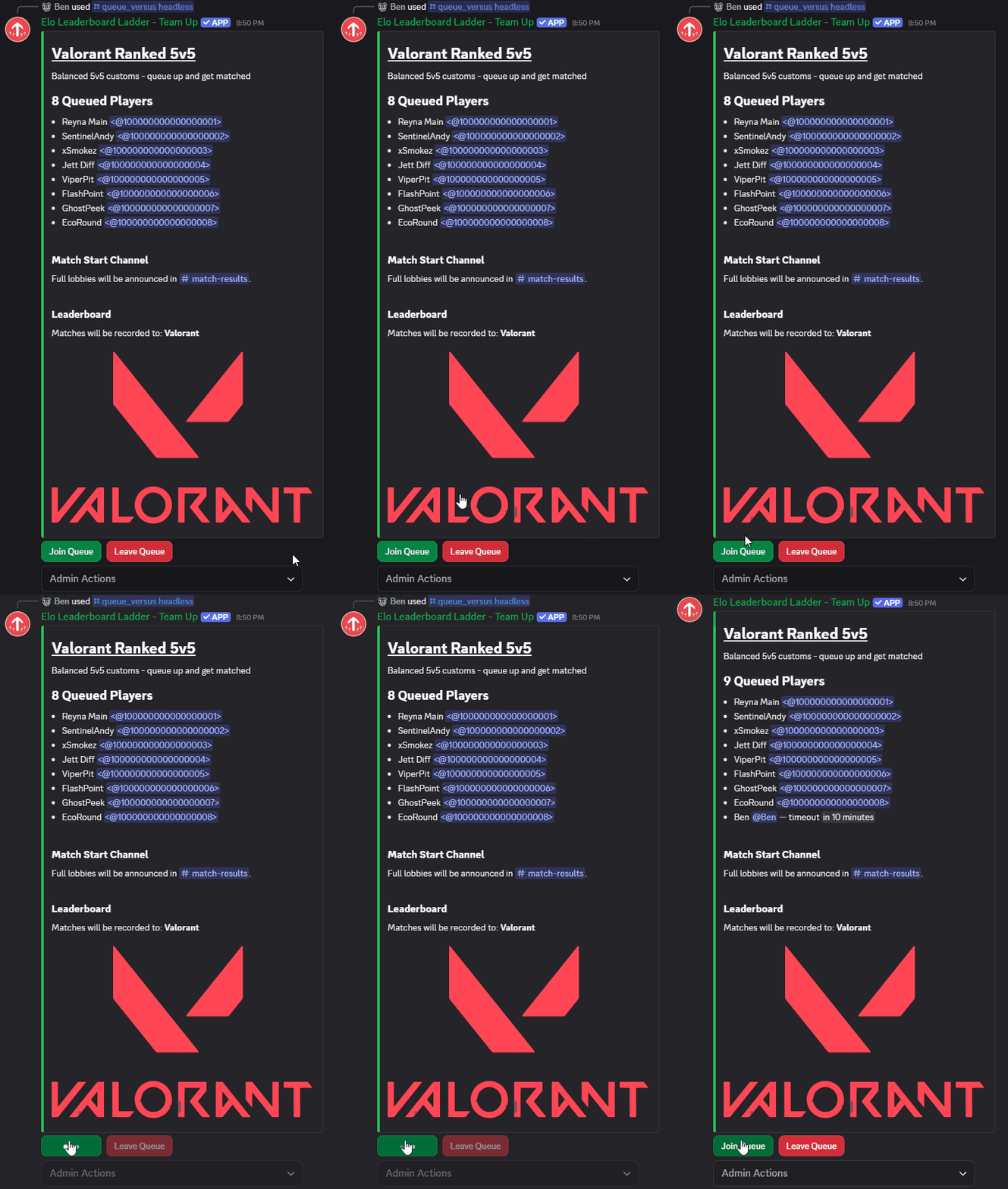
The queue stays open the entire time. Other players can keep joining for the next match while the current one plays out.
Voting on Results
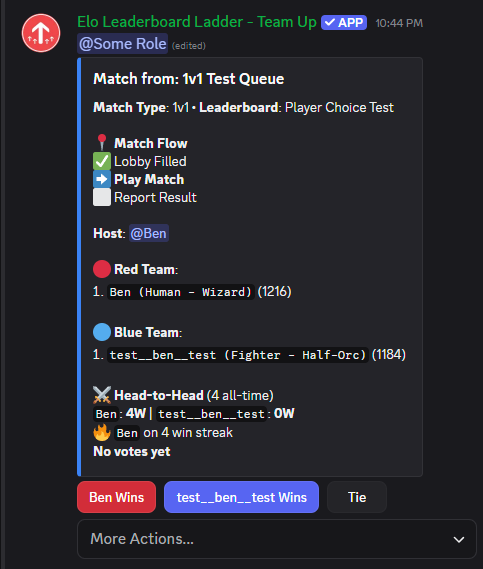
Once the game is played, both teams vote on the result using buttons on the match message: Red Wins, Blue Wins, Tie, or Cancel Match. When both teams agree, the result is recorded and ratings update automatically.
If teams disagree, a warning appears and a Request Admin Help button lets them call a moderator to resolve it.
Why Balanced Teams Matter
The team_formation:balanced_teams option is doing the heavy lifting here. When 10 players queue up, the bot doesn't just randomly split them. It finds the two teams with the closest possible total Elo.
Say these 10 players are in the queue:
| Player | Elo |
|---|---|
| Player A | 1620 |
| Player B | 1510 |
| Player C | 1485 |
| Player D | 1440 |
| Player E | 1380 |
| Player F | 1350 |
| Player G | 1290 |
| Player H | 1240 |
| Player I | 1180 |
| Player J | 1105 |
Instead of randomly getting a 1620+1510+1485+1440+1380 team (7435) vs. a 1350+1290+1240+1180+1105 team (6165), a 1,270 Elo gap, the bot finds something like:
- Red Team: 1620 + 1350 + 1290 + 1180 + 1380 = 6820
- Blue Team: 1510 + 1485 + 1440 + 1240 + 1105 = 6780
A 40-point gap instead of 1,270. Games stay close, players stick around.
Other team formation options exist too (random teams for casual lobbies, captain drafts for pickup games), but balanced teams is the go-to for ranked play.
Add a Map Pool
For games with map selection, create a pool and let players vote:
On the dashboard: Option Sets (choose "A map pool").
- Add Ascent to pool val-maps
- Add Bind to pool val-maps
- Add Haven to pool val-maps
- Add Split to pool val-maps
- Add Icebox to pool val-maps
- Add Lotus to pool val-maps
- Add Sunset to pool val-maps
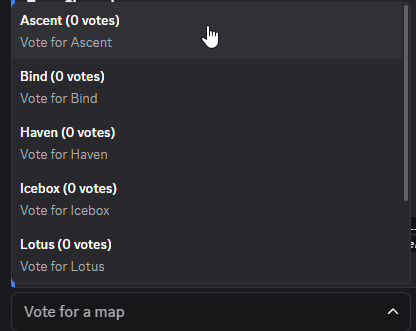
Then set it as the default map pool or assign it directly to a queue through the queue settings. When a match starts, a map vote runs automatically and the winning map is shown in the match message.
Customize Your Queue
Every queue message includes an Admin Actions dropdown at the bottom. This is where you configure everything about the queue after creating it: channels, voice chat, match rules, map voting, and more.
The dropdown groups settings into categories. Select one and a form pops up where you can change values:
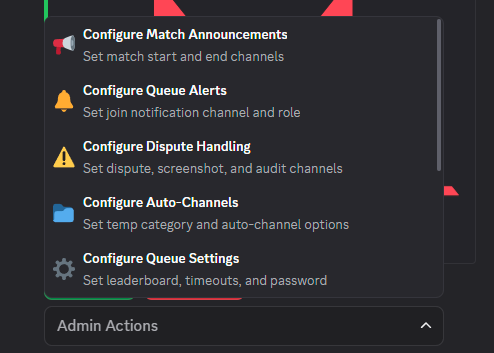
- Match Announcements — set where matches are posted and where results go
- Queue Alerts — get notified when players join (pick a channel and role to ping)
- Auto-Channels — auto-create voice channels per match
- Queue Settings — idle timeout, rematch cooldown, max rating difference, queue password
- Display Settings — toggle player name visibility, hide lobby codes, set a queue image
- Match Rules — ranked/unranked, team formation, match format, custom instructions
- Map Voting — assign a map pool and pick a voting strategy
- Dispute Handling — set channels for disputes, screenshots, and audit logs
If a queue message got buried in chat or you want it in a different channel, open the queue in the Team Up web dashboard (Matchmaking in the sidebar) and use Repost or move… — it replaces the old message so you never end up with duplicates. To see all your existing queues or delete ones you no longer need, use /queue_manage list.
Auto Voice Channels
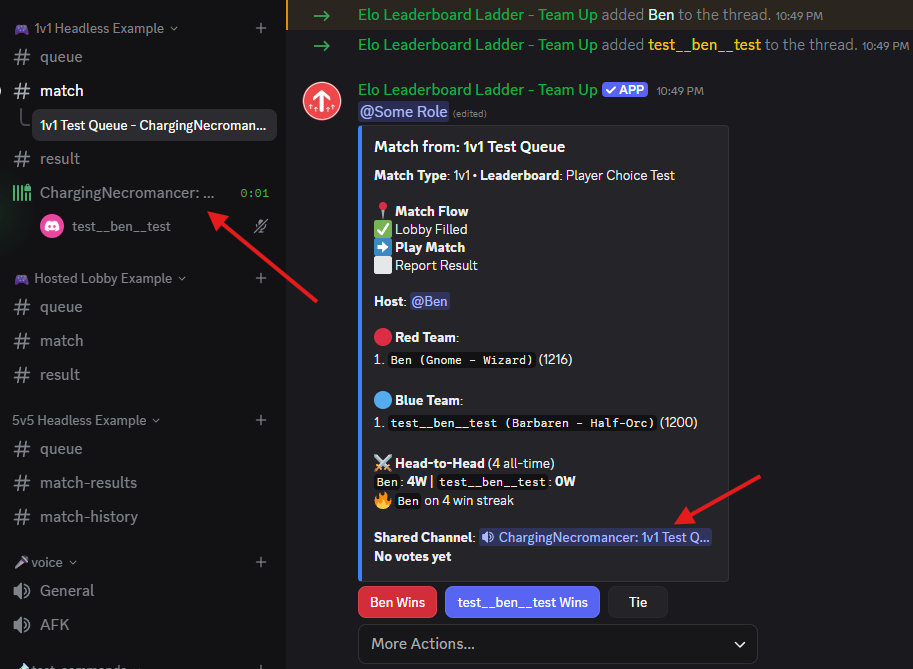
This is the setting that makes the experience feel seamless. Select Configure Auto-Channels from the dropdown and set a category for temporary channels. The bot will create voice channels under that category each time a match pops, then clean them up when the match ends.
Players join the queue, the match pops, and they're immediately in a voice channel with their team. No manual channel management.
Settings Worth Knowing
A few settings worth calling out:
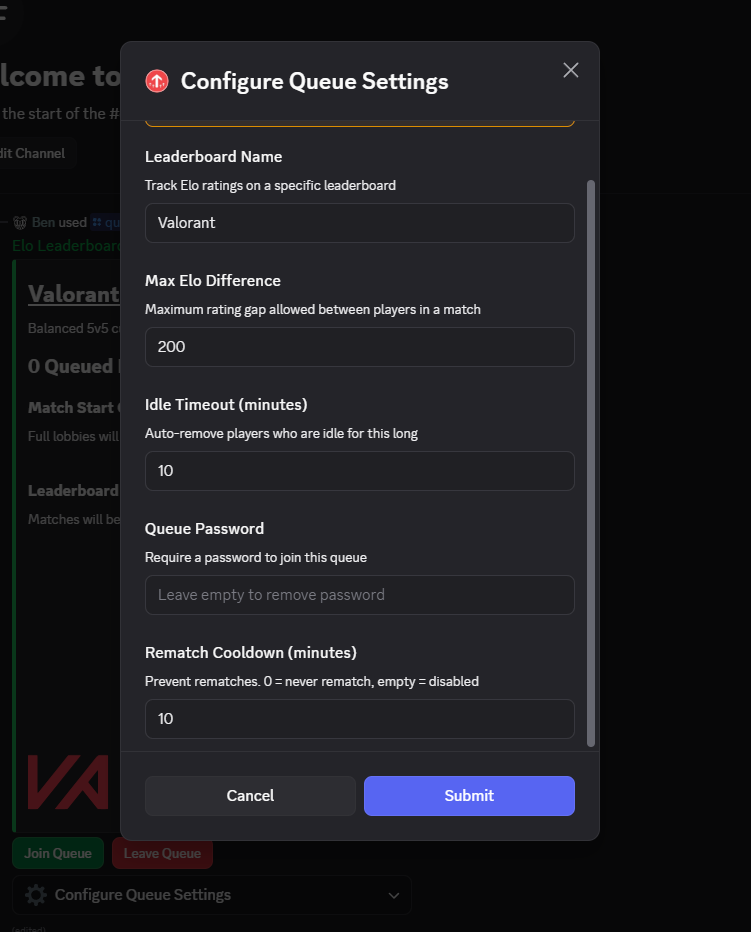
- Rematch cooldown — prevent the same players from facing each other repeatedly. Set a cooldown in minutes, or block rematches entirely in that queue.
- Idle timeout — how long a player can sit in the queue before getting removed (default: 10 minutes).
- Max Elo difference — lock the queue to a skill range. Want a Diamond-only queue? Set a max rating gap.
- Match result mode — ranked (affects Elo), unranked (recorded but no Elo change), or admin approval (results need mod sign-off).
- Queue password — restrict access to players who know the password.
What's Next
With a ranked queue running, your server has automated matchmaking that handles team balancing, result recording, and rating updates without anyone lifting a finger.
Team Up also supports other queue types for different formats: free-for-all queues for fighting games, hosted lobbies for tournament nights, team queues for league play, and more. We'll cover those in future guides.
A few things worth exploring now:
- Valorant 10 mans guide — step-by-step setup for Valorant customs with map pools, tier roles, and stat tracking
- Tier roles — auto-assign Discord roles like Diamond and Gold based on rating
- Admin dashboard — manage queues, players, and settings from a browser
- Matchmaking docs — full reference for every queue parameter and setting
- Best Elo & matchmaking bots compared — how Team Up stacks up against alternatives
The free tier supports 3 leaderboards and 50 matches per day. If you're running multiple queues with higher traffic, Pro starts at $1.99/month.
Questions? Check the matchmaking docs or ask in our Discord community.