
A league gives a streamer something most streams don't have: a ranked ladder the chat can follow. Viewers see where you sit, watch the number move when you win, and come back next week to see if you held the spot. That only works if the ladder is on screen, and a browser tab of the leaderboard captured in OBS isn't it: it has a white page around it, it never scrolls to you, and it doesn't change until someone refreshes it.
Team Up has six live overlays built for that job. This post is about which one belongs on screen when, how to add them to OBS or Streamlabs with settings that don't break, and what to check when one goes blank mid-stream. The overlay reference lists every URL option; this is the part around it.
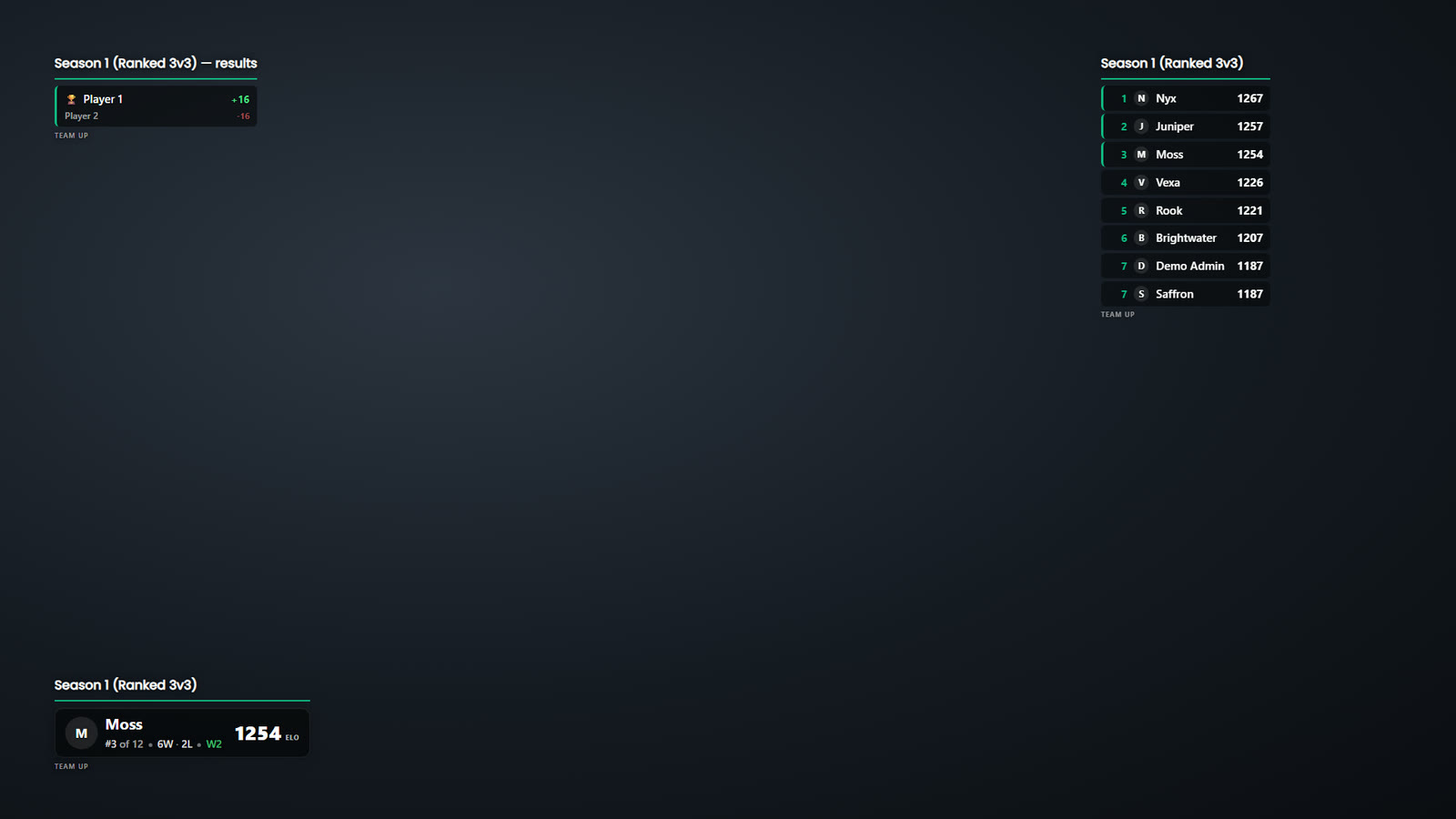
Three overlays from a demo league at their default sizes on a 1920×1080 canvas, over a plain background standing in for game footage. The ticker is showing the made-up result the dashboard previews with; on stream it starts empty.
The six overlays
Every overlay is a web page with a transparent background, so OBS lays it over your game with nothing to key out. Each one keeps a live connection open and changes the moment a match is recorded, whether the result came from Discord or the dashboard.
| Overlay | What it shows | Best for |
|---|---|---|
| Leaderboard | The top 1 to 25 players, rank, avatar and rating | Starting soon, between games, end of night |
| Player standing | One player's rating, rank, tier, record and streak on a single plate | In the corner all session |
| Match ticker | Each result as it lands, with the rating change, for about 20 seconds | In the corner all session |
| Queue roster | "7 / 10 queued", a fill bar and who is in | While a queue is filling |
| Lobby teams | Who is on which side of the current match | Pre-game and during the match |
| Tournament | The matchups being played now, the round, matches played, then the champion | Tournament nights |
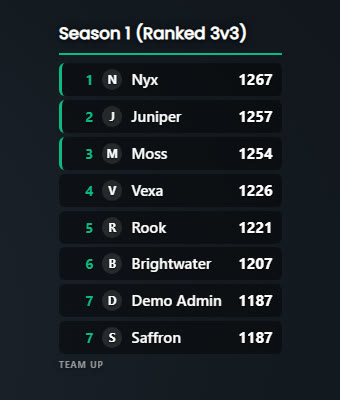
A close-up of the leaderboard overlay from the scene above: eight rows, default look. The small mark underneath is the Free plan's.
The player standing plate is the one built for a streamer's own ranked grind. It leads with your rating (or your rank, if you set it to), shows "#3 of 12" and your record underneath, and a W2 or L1 streak beside the record. If you have a nameplate equipped, the plate is drawn with it, the same one your row shows on your league's public leaderboard, and equipping a different one changes the overlay without touching OBS.
What to show, and when
A stream has three moments that want different things on screen. Don't run all six at once. Put each overlay in the scene it belongs to and let the scene switch do the work.
Starting soon and between games. The game isn't on screen, so the space is yours. This is where the full leaderboard goes, large: 10 rows at a bigger size reads well in the middle of a "be right back" scene. During a queue night, the queue roster belongs here too. Watching "8 / 10 queued" is what gets a viewer who plays in your league to go and join.
During a match. The game needs the screen, so only the small overlays stay: your player standing plate in one corner and the match ticker in another. The ticker is empty until a result comes in, so it costs no space for most of the stream, and it shows each result for 20 seconds, newest on top, at most 8 at once. Keep both clear of the game's own interface. In Valorant and CS2 the minimap or radar sits top left, the round score top centre and the kill feed top right, so take a screenshot of your game at canvas size and put the plate where it covers nothing you'd want to see. For a 10-man or a custom lobby, the lobby teams overlay can sit on the pre-game scene so viewers know who is on which side before the round starts.
End of the night. Go back to the full leaderboard. Ratings have moved since the start of the stream, and left on the outro scene while the last matches are recorded, the board reorders itself live.
Getting the URL
The overlays are built on the league dashboard under Showcase → Overlays & Embeds. Pick the overlay, pick the leaderboard, adjust rows, size and density against the preview (it is the real overlay page, not a mock-up), and copy the URL. The page also prints the width and height to give the Browser Source for your settings.
Who can do it:
- League admins can build any overlay for any player and set the header label every overlay of a leaderboard shows.
- Players with a seat on the dashboard (a viewer seat from an invite, or from signing in with Discord if your league lets its server members in) can open the same page. A viewer's player standing overlay is locked to their own linked player, and the header is the one the league set, so every streamer's overlay of a board reads the same.
- Anyone can type the URL by hand, because the overlays are public pages. Your player id is the part after
/player/in your public profile link, and the player standing URL is:
https://teamupgg.com/embed/{league}/{leaderboard}/player/{player id}
Every overlay works on every plan, with all the layout options and live updates. What the league's plan changes is the corner: Free shows a small "Team Up" mark, Pro removes it and adds a custom accent colour and saved presets, and Unlimited puts the league's own name and icon there. That is the league's plan, not yours: a player streaming on a Free league gets the same overlays as anyone else.
Adding it in OBS Studio
- In the scene, click + under Sources and choose Browser.
- Paste the overlay URL into URL.
- Set Width and Height to what the dashboard printed. At default settings, a 10-row leaderboard is 420 × 528 and a player standing plate is 420 × 152. Compact density shortens the leaderboard to 420 × 388.
- Untick Shutdown source when not visible and Refresh browser when scene becomes active. The overlay holds a live connection, and both options drop it every time you switch scenes.
- Leave Custom CSS as OBS fills it in. Its
background-color: rgba(0, 0, 0, 0)is what keeps the page transparent; there is nothing to add. - Click OK and drag the source into place. The overlay sits at the top left of its source, so move the source, not the contents.
If the source comes out too big, that's fine: the extra area is transparent. If it's too small, the overlay is cut off at the edge, and at the extreme it disappears completely.
Streamlabs Desktop
The steps are the same. Add a Browser Source from the source list, paste the URL, set the width and height, and turn off Shutdown source when not visible and Refresh browser when scene becomes active. Streamlabs uses the same browser source as OBS underneath, so everything in this post applies to both.
Getting the size right on a 1080p canvas
The overlay is drawn at the size of its source, one pixel to one canvas pixel. Two ways to make it bigger, and only one of them stays sharp:
- Use the size option on the dashboard (or
scale=1.5in the URL, anywhere from 0.5 to 2.5). The page lays itself out larger, so text stays crisp. Multiply the source's width and height by the same number: a 1.5× leaderboard of 10 rows wants about 630 × 792. - Don't drag the source's corner handles to scale it in OBS. That stretches a finished image, and small text turns soft. If you already did, right-click the source, Transform → Reset Transform, and set the size on the dashboard instead.
On a 1440p canvas, a scale of about 1.33 gives the same proportions as scale 1 on 1080p.
For a busy or bright game, two options help the overlay read: Tinted panel (panel=1) puts one dark rounded panel behind the whole overlay, title and corner mark included, and Tint (tint=, 0 to 100, default 55) sets how dark it is. Every row already sits on its own dark backing; the panel is for the title, which otherwise sits straight on the video.
How it updates after a reported match
Nothing on stream needs touching after a result is recorded:
- Leaderboard. Each changed rating rolls to its new value, a +N or −N appears beside it, then the rows slide into their new order. A player who climbs into the visible rows from below appears at the next background refresh, which runs every two minutes.
- Player standing. The rating updates at once, and the rank is fetched again shortly after, because your rank also moves when other people play.
- Ticker. The result appears as soon as the match is recorded and leaves after 20 seconds.
- Queue and lobby. Joins, leaves and team changes show at once. Changes a timer makes, like an idle player removed from the queue, can take up to a minute.
- New season. After a Season Rollover goes live, a leaderboard or player overlay of last season switches to the new season by itself within a couple of minutes, and the ticker the next time its source loads. To keep showing the old season for a recap, the dashboard lists it as "(ended)" and adds
season=pinto the URL.
If the overlay loses its connection, a small amber dot appears beside the title until it reconnects on its own.
Tournament nights
The tournament overlay shows what is being played now rather than the whole bracket, because a full bracket is too wide and too dense to read on stream. Before the start it shows the start time and how many have signed up. While the event runs, it lists every match that can be played right now (winners and losers brackets alike), which round each is in, who the winner plays next once that is decided, and how many matches have been played, with a "+N more" line when they don't all fit. When the final is reported it shows the champion.
A layout that works for a bracket night: the tournament overlay on the between-matches scene, where it has room, and the ticker on the in-game scene, so each result shows as it comes in without covering the game. Running the event itself (format, seeding, check-in) is covered in how to run a Discord tournament, and the bracket side of Team Up is on the tournaments page.
Troubleshooting
The source is blank. Almost always the source is smaller than the overlay. Raise the width and height to what the dashboard prints. A wrong URL doesn't look blank: it shows a small "Overlay not found" or "Leaderboard not found: check the overlay URL" label, so copy the URL from the dashboard again.
A dark box shows behind the overlay. Something added a background: check the Custom CSS field, and the overlay URL for a bg= value. The default is transparent. The bg=green and bg=blue key colours are only for setups that can't carry transparency.
It goes blank or restarts when I switch scenes. One of the two options from step 4 is still ticked.
I changed the look on the dashboard but the stream shows the old one. The overlay URL holds its settings, so a new look means a new URL. Leagues on Pro or above can save a preset instead: the URL then points at the preset, and editing it changes every running overlay the next time it loads. To load a change now, open the source's properties and click Refresh cache of current page.
The text looks blurry. The source was scaled in OBS. Reset its transform and use the size option instead.
The ratings are hidden. If your league hides ratings until a reveal time, the leaderboard overlay shows a lock and the reveal time, and shows the rankings within a couple of minutes of the reveal.
Frequently Asked Questions
Do I need a green screen or chroma key for the overlays?
No. The overlay background is transparent and OBS composites it with transparency by default. The green and blue background options exist only for capture setups that can't pass transparency through.
Can I put my own rank on stream if I'm not a league admin?
Yes. If you have a seat on your league's dashboard, Overlays & Embeds builds a player standing overlay for your own linked player. If you don't, the overlay URL is public, and the section on getting the URL above shows how to build it from your profile link.
Does it work in Streamlabs or on a website?
It works in OBS Studio and Streamlabs Desktop, as a Browser Source in both. The same URL also works in an <iframe> on your league's site; the dashboard's For a website option writes the code for you. The ticker is stream-only, since on a website it would be an empty box most of the time.
Does my equipped nameplate show on stream?
On the player standing plate, yes: the plate is drawn with your equipped nameplate, and changing it updates the overlay live. Add plate=0 to the URL for the plain plate on stream without unequipping anything. The leaderboard overlay draws plain rows.